

Last Updated on October 16, 2026
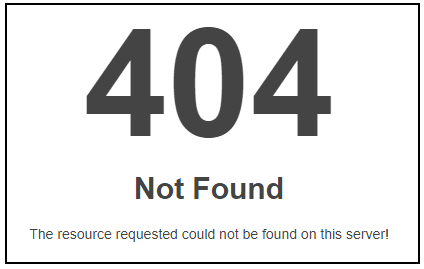
A visitor clicks a link to your site. Instead of the page they expected, they see a stark white screen with a generic message: “Not Found.” No explanation. No way forward. They leave.
That generic screen is a 404 error, an HTTP status code that means the server is working, but the specific page the visitor requested does not exist. Every site encounters this at some point. Pages get deleted, URLs change, and visitors mistype addresses.
The default server response is not helpful. A custom 404 page is. It tells visitors what happened, gives them a way back to your site, and keeps the experience consistent with the rest of your pages.
In this tutorial, we will build a simple HTML 404 error page, style it with CSS, and configure Apache to serve it using .htaccess. No frameworks or build tools required.
What a 404 error means
An HTTP status code is a three-digit number a web server sends back to explain what happened to a request. When you type a URL into your browser, the server responds with one of these codes. A 200 means everything worked. A 404 means the server is reachable, but the specific page you requested is not.
That distinction matters. A 404 is not a server crash. It is not a network problem. The server received the request just fine. It simply could not find a matching resource at that URL.
404 belongs to the 4xx family of status codes, which indicate client-side errors. In practice, though, the “error” is almost always on the site’s end. A page was removed, a link was never updated, or a URL was restructured without a redirect.
You may also encounter 410 Gone. The difference is intent. A 404 means “not found,” which could be temporary. A 410 means “intentionally removed and not coming back.” For most small sites, 404 is the status you will work with.
Why 404 errors happen
404 errors are a normal part of running a website. They show up for straightforward reasons:
- Deleted page. A page was removed but links to it still exist elsewhere on the site or on external sites.
- Moved page without a redirect. The content moved to a new URL, but the old URL was never redirected.
- Broken internal or external links. Other pages on your site, or pages on other sites, still point to a URL that no longer works.
- Mistyped URL. A visitor manually entered the address and made a typo.
- Expired or changed domain. The domain structure changed, breaking old paths.
- Rare server misconfiguration. Less common, but a misconfigured server can return 404 for pages that actually exist.
Most 404 errors come down to maintenance. Links break over time, and site owners do not always check them regularly. That is exactly why a custom 404 page matters. You cannot prevent every broken link, but you can control what visitors see when they hit one.
Why a custom 404 page is worth creating
The default 404 page on most servers is a plain text message with no navigation, no branding, and no guidance. It tells the visitor something went wrong, then leaves them stranded.
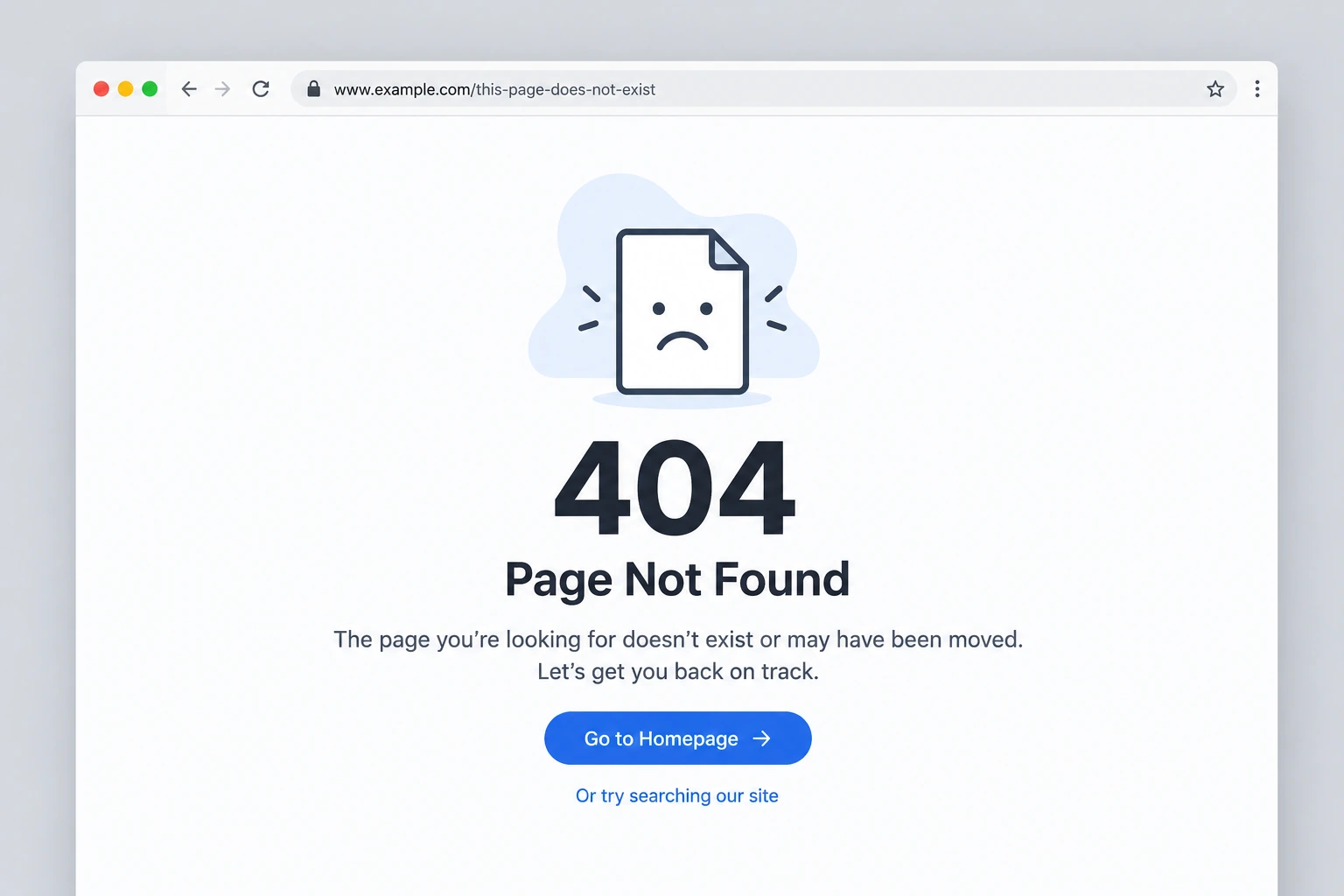
A custom 404 page does the opposite. It explains what happened in plain language, provides a link back to the homepage or another useful page, and keeps the look and feel consistent with the rest of your site. That consistency builds trust. A visitor who lands on a well-designed error page is more likely to stay on your site than one who sees a generic server message.
A useful custom 404 page should:
- Tell the visitor the page was not found
- Suggest they check the URL for typos
- Provide a direct link to the homepage or a relevant section
- Match the visual style of the rest of the site
This is not about decoration. It is about recovery. The goal is to give visitors a clear next step instead of a dead end.
What to include on a simple 404 page
Before writing any code, decide what your page not found message needs to contain. For a basic custom error page, the checklist is short:
- A clear headline. Something like “Page not found” is direct and universally understood.
- A brief explanation. One or two sentences explaining that the page does not exist or may have moved.
- A link to the homepage. This is the single most useful element. Give visitors an obvious way back.
- A suggestion to check the URL. Helpful for visitors who typed the address manually.
- Basic readable styling. The page should not look broken, even if the content is about something being broken.
- Optional branding or image. A logo or simple graphic can reinforce that the visitor is still on your site.
That is enough. You can always add more later, but start with these essentials.
Step 1: create the HTML 404 page
Open any text editor and create a new file. Save it as 404.html. This is the file your server will serve when a visitor hits a missing page.
Here is a clean starting point:
<!DOCTYPE html>
<html lang="en">
<head>
    <meta charset="UTF-8">
    <meta name="viewport" content="width=device-width, initial-scale=1.0">
    <title>Page not found</title>
</head>
<body>
    <h1>Page not found</h1>
    <p>Sorry, the page you were looking for does not exist or may have been moved.</p>
    <p>You can <a href="/">return to the homepage</a> or check the URL for typos.</p>
</body>
</html>
A few things to note about this structure.
The file is named 404.html because that is the convention most servers and developers expect. You can name it something else, but 404.html keeps things simple and self-documenting.
The <h1> gives the page a clear, accessible heading. Search engines and screen readers both use it to understand the page’s purpose.
The anchor tag linking to / sends visitors to your site’s root. That single link is the most important element on the page. Without it, visitors have nowhere to go.
This is a minimal starting point. It works as-is, but it will look plain. The next step adds some basic styling.
Step 2: style the page with CSS
A small amount of CSS makes the page readable and visually consistent with the rest of your site. For simplicity, we will use an embedded <style> block inside the <head> section rather than linking to an external stylesheet.
Here is the full file with styling added:
<!DOCTYPE html>
<html lang="en">
<head>
    <meta charset="UTF-8">
    <meta name="viewport" content="width=device-width, initial-scale=1.0">
    <title>Page not found</title>
    <style>
        body {
            font-family: Arial, Helvetica, sans-serif;
            background-color: #f4f4f4;
            color: #333;
            display: flex;
            justify-content: center;
            align-items: center;
            min-height: 100vh;
            margin: 0;
            padding: 20px;
        }

        .container {
            background-color: #fff;
            padding: 40px;
            border-radius: 8px;
            text-align: center;
            max-width: 500px;
        }

        h1 {
            font-size: 2rem;
            margin-bottom: 16px;
        }

        p {
            font-size: 1.1rem;
            line-height: 1.6;
        }

        a {
            color: #0066cc;
            text-decoration: underline;
        }

        a:hover {
            color: #004499;
        }
    </style>
</head>
<body>
    <div class="container">
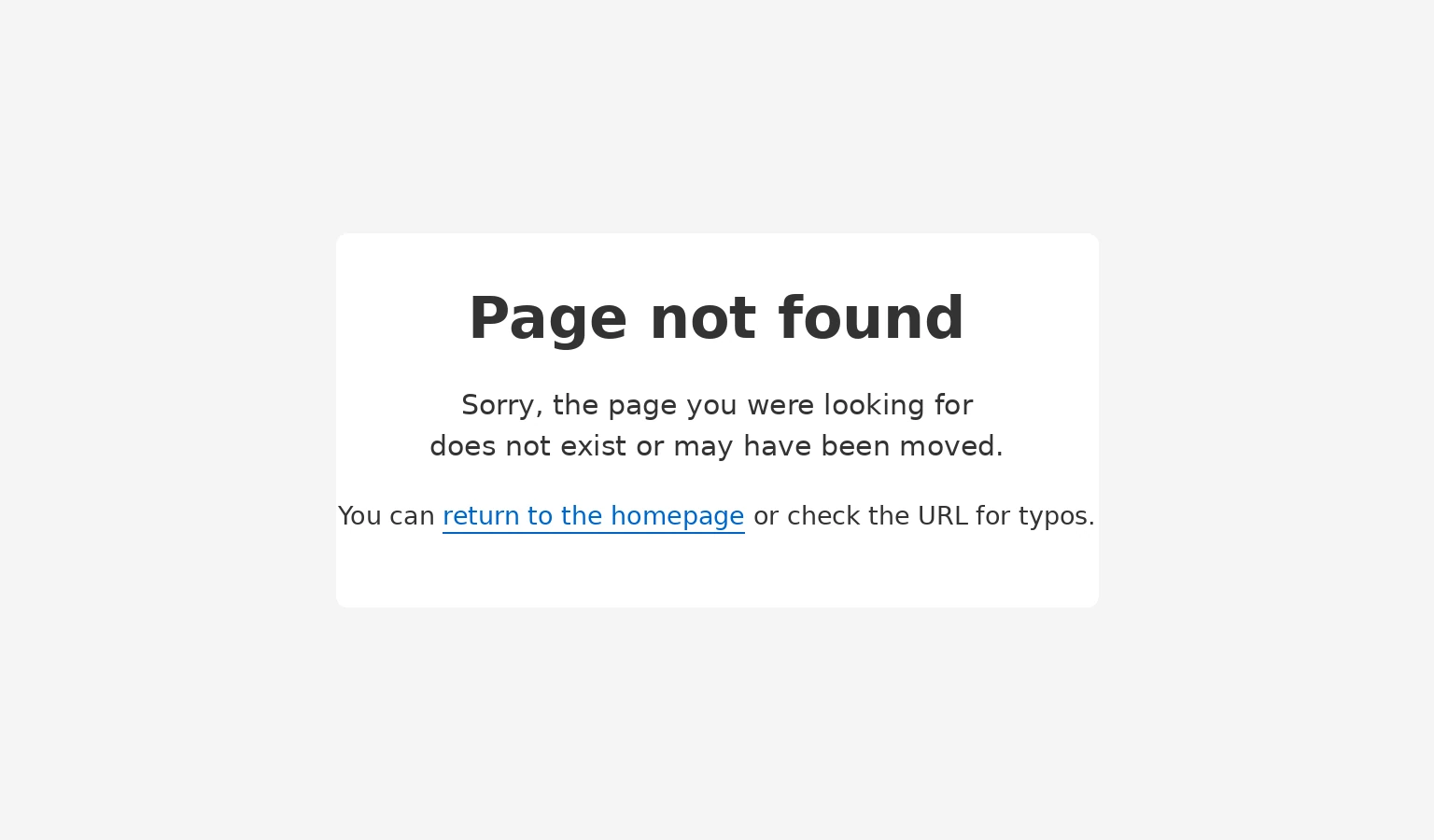
        <h1>Page not found</h1>
        <p>Sorry, the page you were looking for does not exist or may have been moved.</p>
        <p>You can <a href="/">return to the homepage</a> or check the URL for typos.</p>
    </div>
</body>
</html>
The body styles center the content vertically and horizontally. The .container creates a card-like wrapper that separates the message from the background. The link is styled to be clearly clickable.
This is not a design-heavy approach, and that is the point. A 404 page should prioritize readability and navigation over visual complexity. If you want to add a logo or a branded image, place it inside the .container div above the <h1>. Keep it lightweight so the page loads quickly.
Step 3: tell the server to use your 404 page
The HTML file exists, but your server does not know to use it yet. On Apache web servers, you configure this with a .htaccess file. This is a plain text configuration file that sits in your site’s root directory and passes instructions to the server.
Create a new file in your text editor and add this single line:
ErrorDocument 404 /404.html
Save the file as .htaccess (with the leading dot and no file extension). Upload it to the root directory of your website, the same level where your index.html or main site files live.
If a .htaccess file already exists in your root folder, do not replace it. Open it and add the ErrorDocument line to the existing file. Overwriting it could break other server configurations.
The path /404.html must match the actual location of your file. If you placed the file in a subdirectory, update the path accordingly.
A note on hosting environments. The .htaccess method works specifically on Apache-based hosting. If your site runs on Nginx, a managed platform like Netlify or Vercel, or a site builder like WordPress or Squarespace, the configuration process is different. Check your hosting provider’s documentation for how to set a custom error page. The HTML file itself stays the same. Only the server configuration step changes.
Step 4: test the 404 page
Once both files are uploaded, test the setup by visiting a URL on your site that you know does not exist. Try something like yourdomain.com/this-page-does-not-exist.
You should see your custom 404 page instead of the server’s default error screen.
While testing, verify the following:
- The custom page displays correctly with your styling
- The homepage link works and takes you to the right destination
- The page loads quickly without broken images or missing styles
- The browser’s developer tools show a 404 status code in the Network tab, not a 200
That last point matters. If the server returns a 200 status code while displaying your error message, you have created what is called a soft 404. The page looks like an error page, but the server is telling search engines it is a normal, valid page. Search engines can penalize this. A properly configured ErrorDocument directive should return the correct 404 status code automatically.
Common mistakes to avoid
Most problems with custom 404 pages come from file placement or configuration errors. These are the ones that catch beginners most often:
- Saving
404.htmlin the wrong directory. The file needs to be where the.htaccesspath says it is. If your directive says/404.html, the file must be in the root. - Wrong path in
.htaccess. A mismatch between theErrorDocumentpath and the actual file location means the server cannot find your custom page. Ironically, this can trigger the default 404. - Forgetting to upload
.htaccess. The file sitting on your local machine does nothing. It needs to be on the server. - HTML or CSS syntax errors. An unclosed tag or a missing semicolon can break the layout. Validate your HTML before uploading.
- Broken image paths. If you add an image, use an absolute path or make sure the relative path works from every possible URL depth.
- Creating a soft 404. Redirecting the visitor to your error page with a 200 status code instead of serving it as a true 404 response confuses search engines.
- Assuming every host supports
.htaccess. This is Apache-specific. Nginx, Node-based servers, and many managed platforms handle custom error pages differently.
These are setup issues, not failures. Check each one before troubleshooting anything more complex.
Simple 404 page best practices
A useful 404 page should prioritize recovery over decoration. The visitor did not choose to be here. Your job is to get them where they actually wanted to go.
Here is my direct recommendation: focus on clear messaging and a working link before spending time on visuals. A plain page with a good homepage link is more useful than a beautifully designed page with no navigation.
| Approach | What it does well | Limitation |
|---|---|---|
| Clear message + homepage link | Helps visitors recover quickly | Minimal guidance if content moved |
| Replacement link to new page | Best for renamed or migrated content | Needs maintenance as URLs change |
| Branded design with image | Reinforces site identity | Can distract if navigation is weak |
| Generic server page | Requires no setup | Offers no help to the visitor |
Keep the page lightweight. Avoid loading heavy scripts, complex layouts, or full navigation menus. The visitor needs one thing: a way forward.
Match the page’s visual style to the rest of your site so it does not feel like a dead end. Even a consistent font and color scheme helps.
When to use redirects instead of a 404
Not every missing page should return a 404. If the content moved to a new URL, a 301 redirect is the better choice. It sends visitors and search engines to the updated location automatically.
A 404 is the right response when the content is genuinely gone and there is no replacement. If the removal is permanent and deliberate, a 410 Gone status is even more precise. It tells search engines to stop checking for that URL.
The one thing to avoid: redirecting every missing page to the homepage. This creates a confusing experience for visitors and sends misleading signals to search engines.
| Situation | Better choice | Why |
|---|---|---|
| Page moved to a new URL | 301 redirect | Sends visitors to the updated location |
| Content removed with no replacement | 404 or 410 | Signals that the page is gone |
| Legacy link with a known new match | 301 redirect | Recovers old traffic |
| Random invalid URL | Custom 404 page | Avoids misleading visitors |
Use redirects when you can point somewhere useful. Use your custom 404 page when you cannot.
Final takeaway
You now have a working workflow for handling missing pages on your site. You understand what a 404 error means and why it happens. You have built a clean HTML page, styled it with CSS, connected it to Apache using .htaccess, and tested it to confirm it works correctly.
A custom 404 page is a small project with a real impact. It turns a dead end into a recoverable moment for your visitors. It is also a practical exercise in HTML, CSS, and basic server configuration, three skills that apply to nearly every web project you will work on.
Keep the page simple, test it after any site changes, and update it if your site structure evolves.
Build more practical web development skills. If this tutorial was useful, explore Udacity’s catalog for hands-on programs in HTML, CSS, and beginner programming that go deeper into real-world web development.


