Last Updated on September 9, 2025
When I first started coding, I bounced between different text editors like a pinball, never quite finding one that felt right. Then I discovered Visual Studio Code, and everything changed. What started as Microsoft’s attempt to create a lightweight, cross-platform editor has evolved into the most popular development environment in the world, used by over 73% of developers according to the 2024 Stack Overflow Developer Survey.
What makes VS Code special? It’s the perfect balance of simplicity and power. It’s free, lightweight enough to start in seconds, yet extensible enough to handle everything from simple HTML files to complex enterprise applications. I’ve been using VS Code for over three years, and it has transformed how I approach development.
In this guide, I’ll walk you through everything you need to know to get started with Visual Studio Code. We’ll explore the interface, master essential features, discover valuable extensions, learn debugging techniques, and customize your setup for maximum efficiency.
Getting Started with Visual Studio Code
Installation and Interface Overview
Getting VS Code running is straightforward. Download it from code.visualstudio.com – the installer is lightweight at under 100MB. When you first launch VS Code, you’ll see a clean, welcoming interface that doesn’t overwhelm you with options.
The VS Code interface consists of five main areas. The Activity Bar runs vertically along the left edge, serving as your navigation hub with icons for Explorer, Search, Source Control, Run and Debug, and Extensions. The Primary Side Bar displays contextual information when you select a view. The Editor occupies the central area where you’ll spend most of your time coding. The Panel Area at the bottom houses the integrated terminal and output logs. Finally, the Command Palette (Ctrl+Shift+P) provides access to virtually every command in VS Code.


Opening Your First Project
VS Code operates on workspaces – either single files or folders containing your project. Create a new folder called “my-first-vscode-project” and open it using File > Open Folder. Create a new file called index.html and start typing. You’ll immediately notice IntelliSense suggesting HTML completions, demonstrating VS Code’s intelligence at work.

Essential Editor Features That Boost Productivity
IntelliSense: Your Coding Assistant
IntelliSense is VS Code’s most impressive built-in feature. Unlike simple autocomplete, IntelliSense understands your code’s context, the libraries you’re using, and your project structure. Create a JavaScript file and try this example:

As you type the function call, IntelliSense shows the function signature with parameter names. This contextual awareness separates VS Code from simpler editors and accelerates learning by showing you what methods are available and how to use them.
Code Actions and Multi-cursor Editing
Code Actions, indicated by lightbulb icons, provide intelligent suggestions for improving your code. For example, if you write “Hello, ” + name, VS Code can convert it to a template string: `Hello, ${name}`. These suggestions teach better coding practices while you work.


Multi-cursor editing is pure magic for repetitive tasks. Hold Ctrl and click multiple locations to create multiple cursors, then type to edit all locations simultaneously. You can also select all occurrences of a word with Ctrl+Shift+L. This feature dramatically speeds up repetitive editing tasks.
Integrated Terminal
The integrated terminal (Ctrl+`) eliminates the need to switch between your editor and a separate terminal window. It opens with your project root as the working directory, and you can create multiple terminal instances for different tasks – one for running a development server, another for Git commands, and a third for testing.

Top Extensions for Maximum Productivity
The extension ecosystem transforms VS Code into a specialized tool for your development needs. Here are the extensions that have proven most valuable in my daily work:

Code Formatting and Quality
Prettier automatically formats your code for consistency. Install it from the Extensions view (Ctrl+Shift+X) and enable format-on-save in settings. Your code will always be properly formatted without conscious effort.
ESLint focuses on code quality, catching potential errors and enforcing coding standards. It’s like having a senior developer review your code in real-time. While initially overwhelming, ESLint’s suggestions will make you a significantly better programmer.
Development Workflow Enhancers
Live Server provides instant feedback by automatically reloading your browser when you save HTML, CSS, or JavaScript files. Right-click any HTML file and select “Open with Live Server” to experience this game-changing workflow improvement.
Auto Rename Tag automatically updates paired HTML tags when you modify one, eliminating syntax errors from mismatched tags. Path Intellisense provides intelligent autocompletion for file paths, making imports and references much easier.
Git and Collaboration
GitLens transforms VS Code’s Git integration by adding inline blame annotations, detailed commit information, and powerful visualization tools. You can see at a glance who wrote each line of code and when.
Live Share enables real-time collaboration, allowing others to edit your code, access your terminal, and debug your applications. It’s invaluable for pair programming and getting help with difficult problems.
Visual Enhancements
Material Icon Theme replaces default file icons with colorful, distinctive icons that make file identification much faster. VS Code also includes built-in bracket pair colorization – enable it with “editor.bracketPairColorization.enabled”: true in your settings.
Debugging Like a Pro
VS Code’s integrated debugger is far more powerful than scattering console.log or print() statements throughout your code. It provides an interactive way to step through your program, inspect its state, and pinpoint errors with precision.
Let’s walk through an example. Imagine you have the following Python script meant to calculate the total cost of an item with tax, but it’s producing an incorrect result.

With the print() function, you might see an absurdly high number and be confused. With the debugger, you can find the exact cause.
First, ensure you have the Python extension installed from the VS Code Marketplace. Open the Run and Debug view (Ctrl+Shift+D), and VS Code will typically suggest a “Python File” launch configuration, which works perfectly for single files.
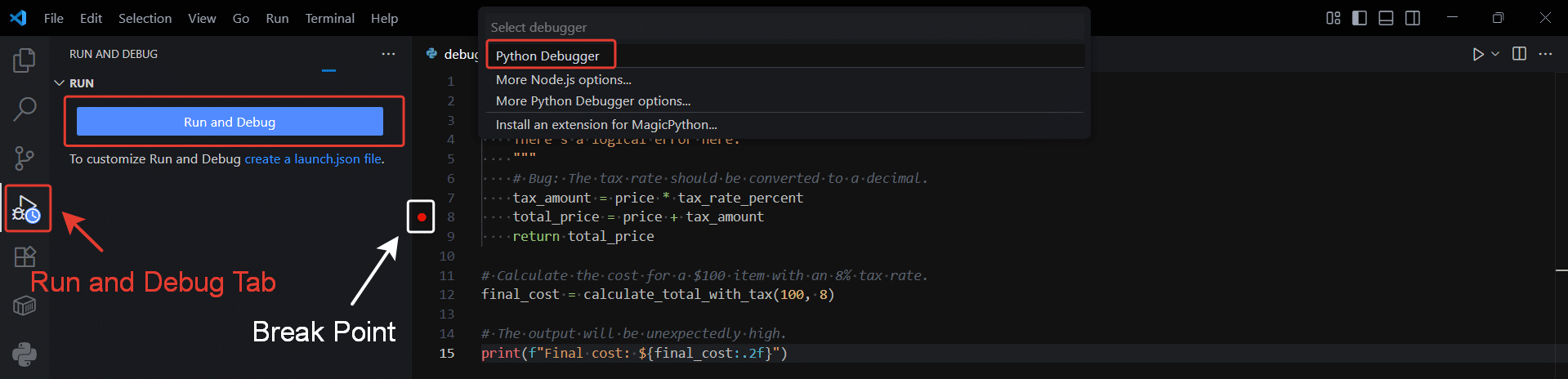
Set a breakpoint by clicking in the gutter to the left of a line number. A good place is the line total_price = price + tax_amount. A red dot will appear. Now, press F5 to start debugging.
Execution will run and then pause at your breakpoint. At this moment, the real magic happens. The Variables pane on the left shows the current value of every variable in scope. You would immediately see that price is 100 but tax_amount is 800, which is clearly wrong. This tells you the error is in the line that calculated tax_amount.

From here, you can step through your code line by line, examine the call stack, and even use the Debug Console to test a fix, like typing price * (8 / 100) to see if it produces the correct value of 8.0.
Customization and Personal Workflow
VS Code’s customizability significantly impacts productivity and enjoyment. Color themes like “One Dark Pro” or “Material Theme” can reduce eye strain and improve focus. Change themes with Ctrl+K Ctrl+T and experiment to find what works best for you.
Learn these essential keyboard shortcuts:
- Ctrl+P: Quick Open files
- Ctrl+Shift+P: Command Palette
- Ctrl+`: Toggle terminal
- Ctrl+B: Toggle sidebar
- Ctrl+D: Select next occurrence
Customize shortcuts through File > Preferences > Keyboard Shortcuts for commands you use frequently.
Version Control Integration
VS Code makes Git approachable with visual tools for common operations. The Source Control view (Ctrl+Shift+G) shows modified files, allows staging changes, and provides visual diff tools. Modified files are marked in the explorer, and changed lines are highlighted in the editor gutter.
The combination of visual tools for common operations and command-line access for advanced features creates a flexible workflow that grows with your Git knowledge.
Conclusion and Next Steps
Visual Studio Code represents more than just a text editor – it’s a gateway to modern development practices and a foundation for building programming skills. The productivity gains from properly configuring VS Code compound over time, and the investment in learning it thoroughly pays dividends throughout your programming career.
What excites me most about VS Code is how it democratizes access to professional development tools. Features once exclusive to expensive IDEs are now freely available, making it ideal for beginners who want to start with professional-grade tools.
Take Your Skills to the Next Level with Udacity
While VS Code provides an excellent foundation, structured learning can accelerate your progress significantly. Udacity’s comprehensive programs combine hands-on projects with expert mentorship to build real-world skills efficiently.
The Programming for Data Science with Python Nanodegree is perfect for using your VS Code skills for data analysis and visualization. You’ll learn Python, SQL, and Git while building a portfolio that demonstrates your abilities.
For web development enthusiasts, the Full Stack JavaScript Developer provides comprehensive training in both front-end and back-end technologies. You’ll use VS Code extensively while building impressive web applications.
The React Nanodegree focuses on one of the most popular JavaScript frameworks, teaching you to build dynamic, interactive user interfaces. Your VS Code JavaScript skills will serve as an excellent foundation for mastering React.
These programs provide the structure, projects, and mentorship that transform your VS Code setup from a powerful editor into a professional development environment. The combination of excellent tools and expert guidance creates optimal conditions for building the skills employers value most.
Your journey with Visual Studio Code is just beginning, but you now have the foundation to make it productive and enjoyable. Happy coding!